
How to Create a LinkedIn Carousel in 2 Minutes with AI — Complete Guide 2026

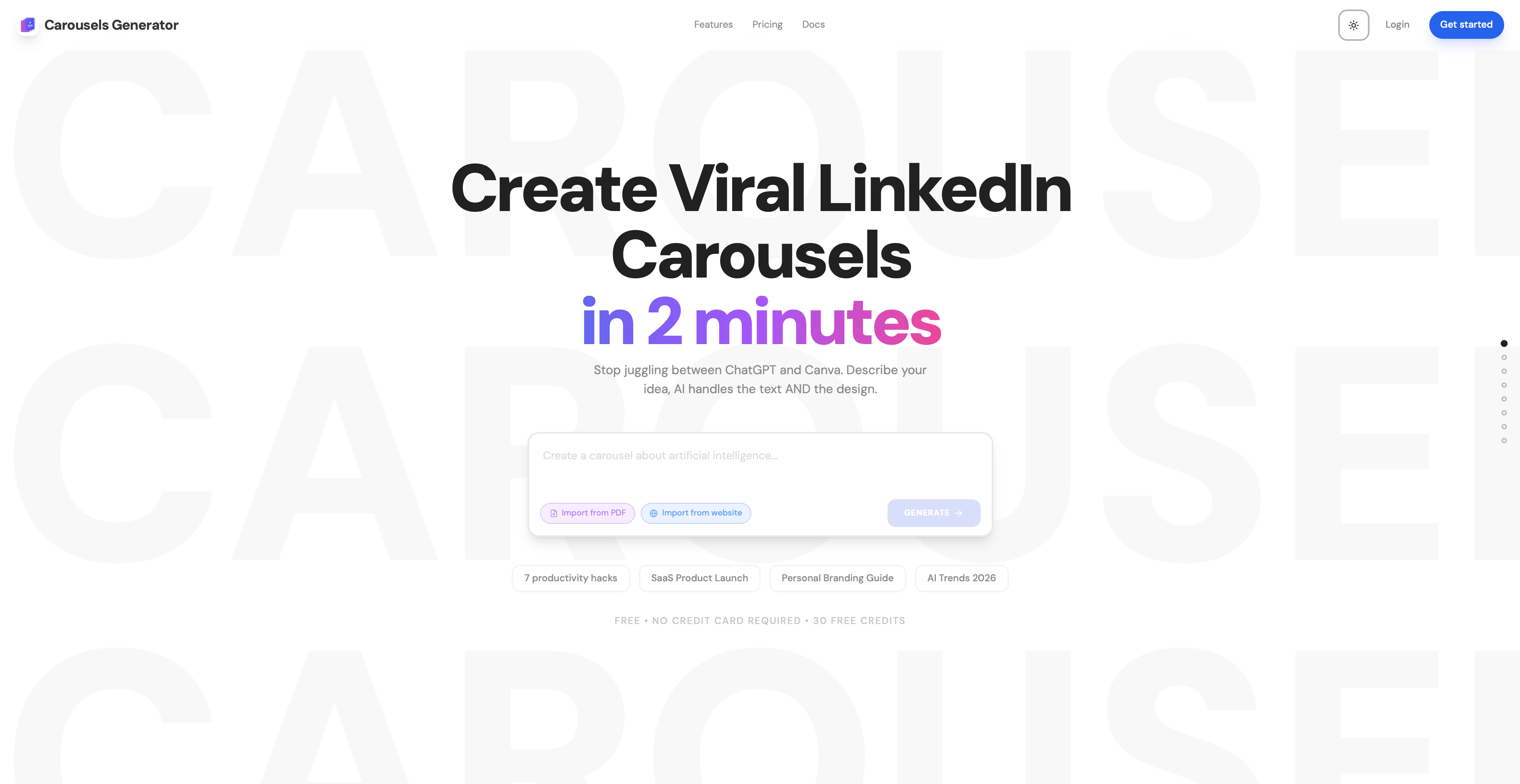
LinkedIn carousels generate 3x more engagement than text posts and achieve an average engagement rate of 6.60% — the highest of any content format on the platform in 2026. The secret is dwell time: every swipe signals to LinkedIn's algorithm that your content is worth distributing.
The problem? Creating a LinkedIn carousel manually takes 30 to 60 minutes. You need to write the copy, design each slide, maintain visual consistency, and export the right format. Most professionals give up after their first attempt.
This guide shows you how to create a complete LinkedIn carousel in under 2 minutes using AI — from your first prompt to a published post. We'll use Carousels Generator, which is the only tool that generates both text and visual design from a single prompt, but we'll also cover the manual method for comparison.
What Is a LinkedIn Carousel (And Why It Works So Well)
A LinkedIn carousel is a multi-slide document post (PDF format) that users swipe through in their feed. Each page of the PDF becomes one slide. Unlike static images or text posts, carousels create an interactive experience — and LinkedIn's algorithm rewards that interaction heavily.
Why carousels outperform every other format
| Format | Avg. Engagement Rate | Avg. Dwell Time |
|---|---|---|
| Carousels | 6.60% | High (swipe interaction) |
| Video | 1.2% | Medium (watch time) |
| Images | 0.8% | Low |
| Text only | 0.5% | Low |
The reason is simple: carousels maximize dwell time, which is the metric LinkedIn's algorithm cares about most. When someone starts swiping through your carousel, they're telling LinkedIn: "this content is valuable." The algorithm then distributes it to more people.
This is why LinkedIn carousels are the most effective content format for:
- Personal branding — establish expertise with educational carousels
- Lead generation — capture attention and drive profile visits
- Thought leadership — share frameworks, data, and insights
- Content repurposing — turn blog posts, podcasts, and videos into carousels
The 3 Methods to Create LinkedIn Carousels (Compared)
Before diving into the step-by-step tutorial, let's compare the three main approaches:
Method 1: Manual design (PowerPoint, Google Slides)
- Time: 45-60 minutes per carousel
- Skill required: Design skills, copywriting
- Cost: Free
- Result: Variable quality, no AI assistance
Method 2: Template-based tools (Canva, Visme)
- Time: 25-45 minutes per carousel
- Skill required: Basic design skills, copywriting
- Cost: Free to $10/month
- Result: Professional templates, but you write all text manually
Method 3: AI generation (Carousels Generator)
- Time: Under 2 minutes per carousel
- Skill required: None — just describe your topic
- Cost: Free (30 credits) to €49/month
- Result: Complete carousel with AI-written text and AI-designed layout
The rest of this guide focuses on Method 3 — the fastest path from idea to published carousel. If you're interested in how AI tools compare to manual design platforms, check our Best LinkedIn Carousel Generator 2026 comparison.
Step-by-Step: Create a LinkedIn Carousel with AI in Under 2 Minutes
Here's exactly how to go from a blank screen to a published LinkedIn carousel in 5 steps.
Step 1: Sign Up and Open the Generator (30 seconds)
Go to carousels-generator.com/auth/signup and create a free account. No credit card required — you get 30 credits immediately (enough for 6 carousels) plus a 7-day Pro trial.
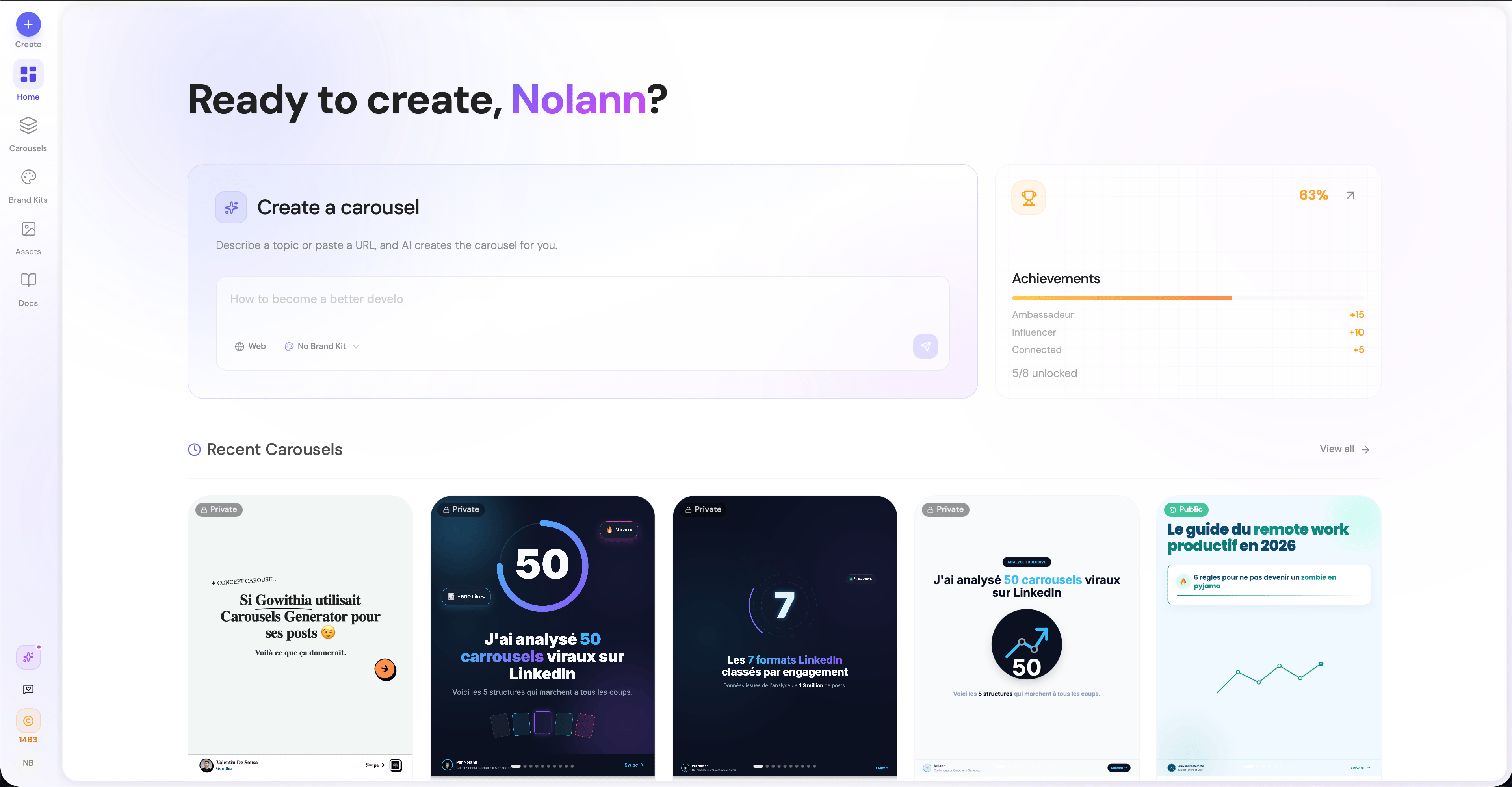
Once logged in, click "New Carousel" in the dashboard. You'll see the AI generation prompt.
Step 2: Write Your Prompt (30 seconds)
This is where the magic happens. Type a topic, paste a URL, or describe what you want. The AI generates everything — text, structure, and visual design.
Good prompt examples:
| Prompt Type | Example |
|---|---|
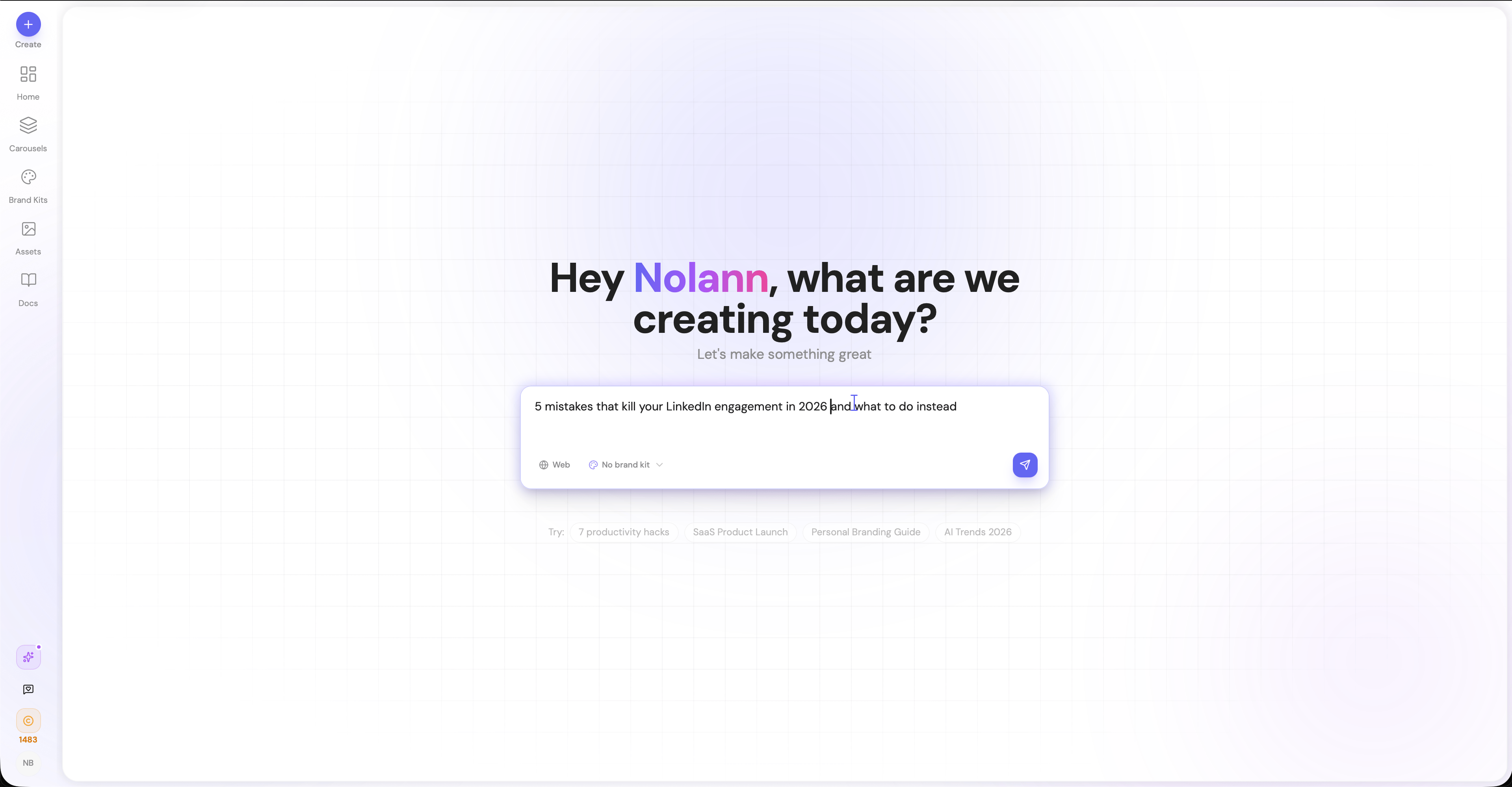
| Topic-based | "5 mistakes that kill LinkedIn engagement in 2026" |
| URL-based | "Turn this blog post into a carousel: [URL]" |
| Data-driven | "Create a carousel about remote work statistics with recent data" |
| Educational | "Step-by-step guide to writing cold emails that get replies" |
Pro tips for better prompts:
- Be specific about the audience: "for B2B SaaS founders" performs better than a generic prompt
- Specify the number of slides: "8-slide carousel" gives you control over length
- Mention the tone: "professional but conversational" or "bold and provocative"
- Add a CTA goal: "end with a CTA to follow my profile"
Step 3: AI Generates Your Carousel (30 seconds)
Click "Generate" and wait. In under 30 seconds, the AI:
- Writes compelling copy for each slide (hook, body, CTA)
- Structures the information across 7-12 slides
- Applies a professional visual design (typography, colors, layout)
- Creates a consistent visual identity across all slides
The result is a complete, ready-to-publish carousel. No blank canvas. No template hunting. No manual text entry.
Step 4: Refine with AI Chat (Optional — 30 seconds)
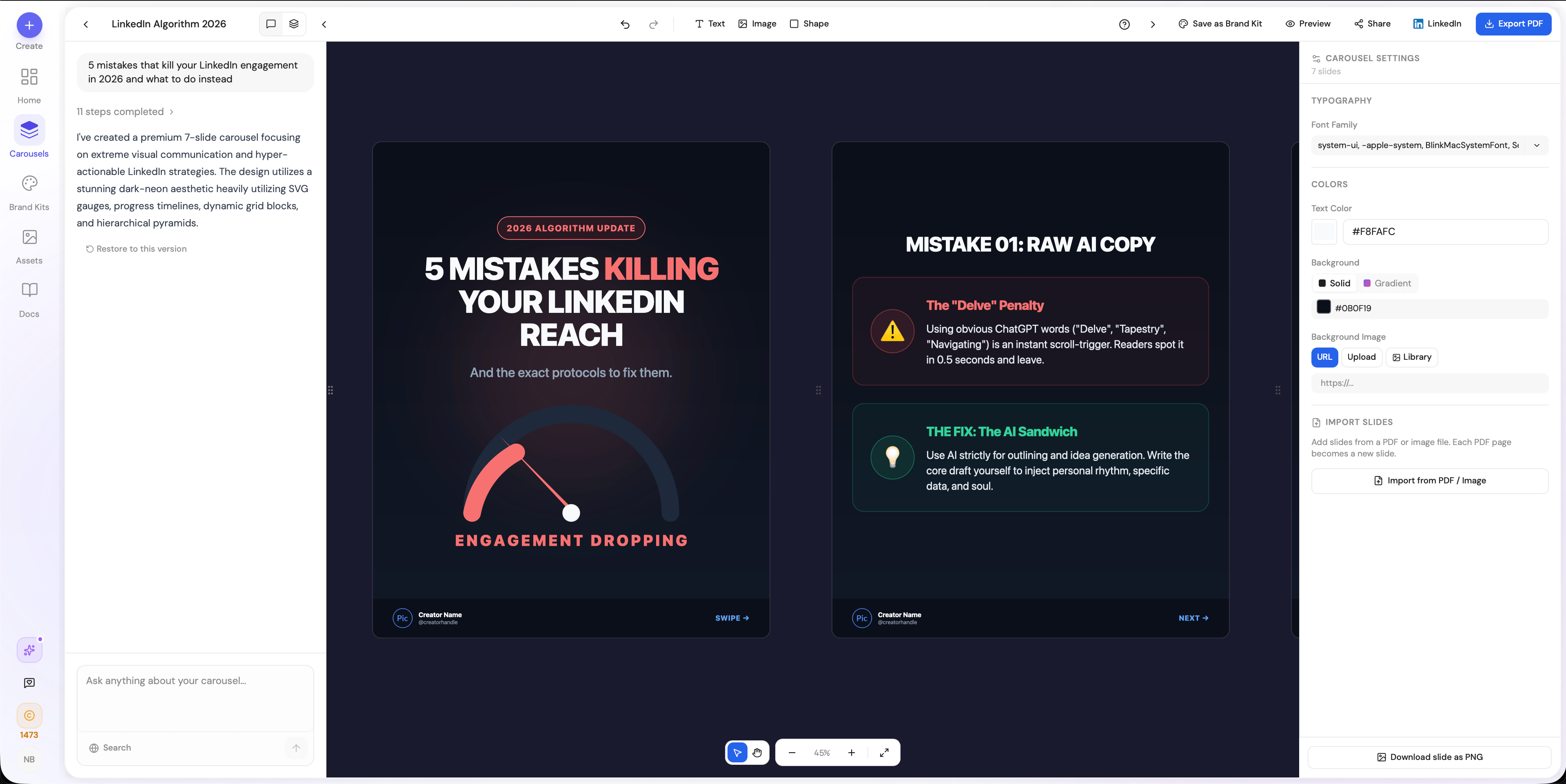
If you want to adjust anything, use the AI chat editor. This is what makes Carousels Generator unique — you can refine your carousel by talking to the AI, just like chatting with a colleague.
Examples of AI chat edits:
- "Make the headline on slide 1 more provocative"
- "Change the color scheme to match my brand (dark blue and white)"
- "Add a statistic to slide 4"
- "Redesign slide 3 with a different layout"
- "Translate the entire carousel to Spanish"
You can make targeted edits (1-2 specific slides) or global edits (restyle the entire carousel). Each targeted edit costs 1 credit; global edits cost 3 credits.
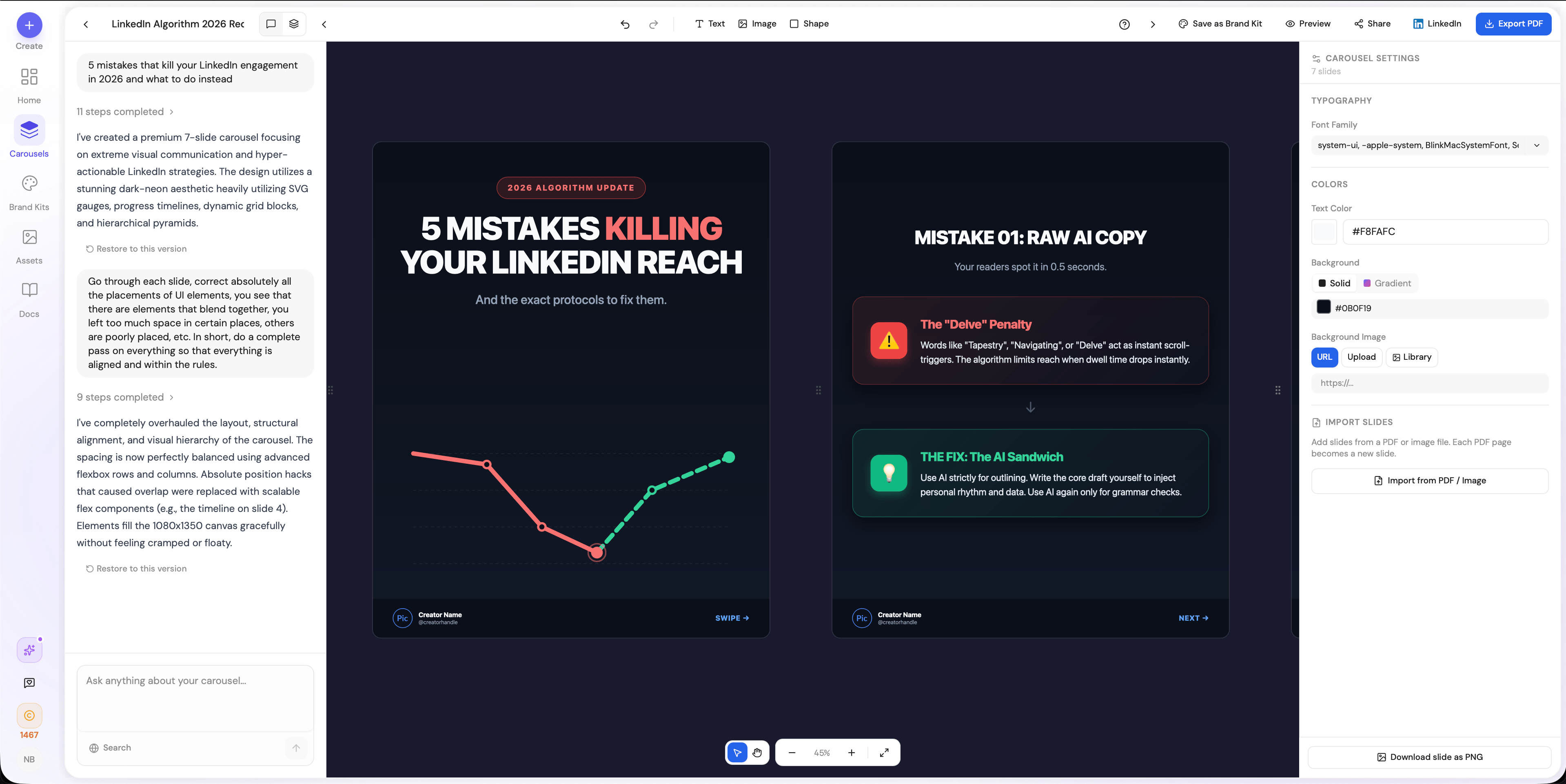
Step 5: Apply Your Brand Kit and Export (30 seconds)
Before publishing, apply your Brand Kit to ensure the carousel matches your visual identity. You can import your brand in three ways:
- From your website URL — the AI extracts colors, fonts, logo, and tone of voice automatically
- From a PDF — upload a brand guidelines document
- Manually — set colors, fonts, and logo yourself
Once your brand is applied, export your carousel:
- PDF — the native LinkedIn carousel format (1080x1350px, 4:5 ratio)
- PNG — individual slide images
- Direct LinkedIn publish — connect your LinkedIn account and publish with an AI-generated caption (Pro plan)
- Public link — shareable link to your carousel on the Discover gallery

How to Post Your Carousel on LinkedIn
Option A: Direct publish from Carousels Generator (Pro plan)
- Connect your LinkedIn account in Settings → LinkedIn (one-time OAuth setup)
- After generating your carousel, click "Publish to LinkedIn"
- The AI generates a caption optimized for engagement
- Review the caption, edit if needed, and click "Publish"
- Track impressions directly from your dashboard
Option B: Manual upload to LinkedIn
- Export your carousel as PDF from Carousels Generator
- Open LinkedIn and click "Start a post"
- Click the document icon (📄) in the post toolbar
- Upload your PDF file
- Add a title for the document (this appears above the carousel)
- Write a caption — include a hook, context, and a call-to-action
- Click "Post"
Caption best practices:
- Start with a hook (question, bold statement, or statistic)
- Add 1-2 sentences of context about what the carousel covers
- End with a clear CTA ("Follow for more" / "Save this for later" / "Comment your thoughts")
- Use 3-5 relevant hashtags at the end
- Keep it under 1,300 characters — LinkedIn truncates at "...see more" around 210 characters, so front-load the hook
7 Tips to Create LinkedIn Carousels That Go Viral
Creating a carousel is just step one. Making it perform well requires understanding how LinkedIn's algorithm evaluates carousel content. Here are the seven principles behind every viral LinkedIn carousel.
1. Nail the Hook on Slide 1
Slide 1 is your headline — it determines whether people start swiping. The best hooks create a curiosity gap: they promise valuable information without giving it away.
Hook formulas that work:
- "X mistakes that are killing your [result]"
- "I analyzed [number] [things] — here's what I found"
- "The [topic] framework nobody talks about"
- "Stop doing [common practice]. Do this instead."
- "[Number] [things] I wish I knew before [experience]"
2. One Idea Per Slide
Each slide should communicate exactly one point. If you need two sentences to explain a slide, split it into two slides. Cognitive overload kills engagement — people swipe away when a slide feels dense.
3. Create a Visual Rhythm
Alternate between:
- Text-heavy slides (key points, frameworks)
- Visual slides (icons, data, illustrations)
- Emphasis slides (bold statement, quote, statistic)
This variation keeps the reader engaged and prevents the "wall of text" effect that kills carousels.
4. Use Consistent Branding
Every slide should use the same colors, fonts, and visual style. This is where a Brand Kit pays off — it ensures automatic consistency across all your carousels, building visual recognition over time.
5. Design for Mobile First
Over 60% of LinkedIn users browse on mobile. This means:
- Font size: minimum 24px for body text, 32px+ for headlines
- Contrast: high contrast between text and background
- Spacing: generous padding — don't crowd the edges
- Images: simple visuals that read well on small screens
6. End with a Strong CTA
The last slide is your conversion moment. Don't waste it with "Thanks for reading." Instead, use a specific CTA:
- "Follow [name] for weekly carousels on [topic]"
- "Save this post — you'll need it later"
- "Comment your biggest takeaway below"
- "DM me [keyword] for the full guide"
7. Optimize Carousel Length
Data from our analysis of top-performing carousels on LinkedIn shows:
| Slide Count | Avg. Engagement Rate | Completion Rate |
|---|---|---|
| 5-6 slides | 4.2% | 78% |
| 7-10 slides | 6.8% | 65% |
| 11-15 slides | 5.9% | 48% |
| 16+ slides | 4.1% | 32% |
The sweet spot is 7-10 slides. Long enough to deliver value and generate dwell time, short enough to maintain completion rates.
LinkedIn Carousel Dimensions and Format Specs (2026)
Getting the technical specs right is essential. Here's the definitive reference:
| Specification | Value |
|---|---|
| File format | PDF (uploaded as document post) |
| Slide dimensions | 1080 x 1350 pixels (4:5 ratio) |
| Max file size | 100 MB |
| Max pages | 300 slides |
| Color space | RGB (not CMYK) |
| Font embedding | Recommended for PDF |
| Alternative ratios | 1:1 (1080x1080), 16:9 (1920x1080) — but 4:5 gets the most feed real estate |
Carousels Generator automatically exports in the optimal 1080x1350 format. If you're using other tools, make sure you set the canvas to these dimensions before designing.
From Blog Post to LinkedIn Carousel: Content Repurposing with AI
One of the most powerful use cases for AI carousel generation is turning existing content into carousels. If you have blog posts, YouTube videos, or podcast transcripts, you can repurpose them in seconds.
How to repurpose a blog post into a carousel
- Copy the URL of your blog post
- Paste it into Carousels Generator's prompt field
- Add context: "Turn this blog post into an 8-slide LinkedIn carousel. Focus on the key takeaways."
- Generate — the AI reads the article and extracts the most impactful points
- Refine via AI chat if needed
This workflow turns one piece of long-form content into a high-engagement LinkedIn asset in under 2 minutes. Over time, this multiplies the ROI of every piece of content you create.
Manual Method: Creating a LinkedIn Carousel in Canva (For Comparison)
For those who prefer manual design, here's the Canva workflow — so you can see the time difference.
- Open Canva and search "LinkedIn carousel" in templates (~2 min browsing)
- Choose a template and customize colors/fonts to match your brand (~5 min)
- Write copy for each slide manually — hook, body, transitions, CTA (~15 min)
- Design each slide — adjust layout, add icons, format text (~15 min)
- Review consistency — check fonts, colors, alignment across all slides (~5 min)
- Export as PDF and upload to LinkedIn (~3 min)
Total: 25-45 minutes per carousel, versus under 2 minutes with AI.
Canva is a great tool for designers who want pixel-perfect control. But for professionals who want to publish LinkedIn carousels consistently, the time investment is unsustainable. For a detailed comparison, see our Best LinkedIn Carousel Generator 2026 article.
The Economics of LinkedIn Carousel Creation
Let's put the time savings in perspective:
| Manual (Canva) | AI (Carousels Generator) | |
|---|---|---|
| Time per carousel | 35 min average | 2 min average |
| Carousels per week | 2 (realistic) | 5+ (easy) |
| Monthly time investment | ~5 hours | ~40 minutes |
| Cost per carousel | $10/mo ÷ 8 = $1.25 | €19/mo ÷ 30 = €0.63 |
| Output quality | Depends on design skills | Consistent, professional |
Publishing more carousels means more dwell time, more algorithmic distribution, and more visibility. The professionals who dominate LinkedIn in 2026 aren't better designers — they're more consistent publishers. AI makes that consistency possible.